Usage
To install the app refer to the Installation instructions.
To run the app there are two options:
From the command Line:
nccutYou can also pass a NetCDF or image file directly into the app via the command line:
nccut -file file_nameFrom Python:
from nccut.nccut import NcCut
NcCut().run()
For some example files to try out NcCut, refer to the Examples section.
Loading a File
NcCut supports .jpg, .jpeg, and .png image files and NetCDF .nc files.
To load the file you can either enter the absolute or relative path to your file in to the text box and select Load* or you can select Browse to find the file on your system.
If you are loading a NetCDF file a popup window will appear with additional selections:
Select which variable from your file you would like to see.
Confirm or select which dimensions you would like to use as the X and Y axes for your variable.
If your variable has data in a third dimension select the Z dimension and an initial Z value to display. You will be able to toggle between z values later.
At this time NcCut can only load variables with 2 or 3 dimensions.
You can scroll to zoom in and out of the image and can click and drag the image to move it around.
You can rotate or flip the image as well as change graphic settings for the tools using the buttons in the settings bar at the top of the screen.
If you are loading a NetCDF file, from the NetCDF menu in the settings bar you can change which variable or z value you’d like to see as well as change the color map or contrast of the image.
Changing the contrast and colormap only affects the displayed image. Transect data is taken from the NetCDF file itself.
Tools
NcCut has two types of tools for making transects.
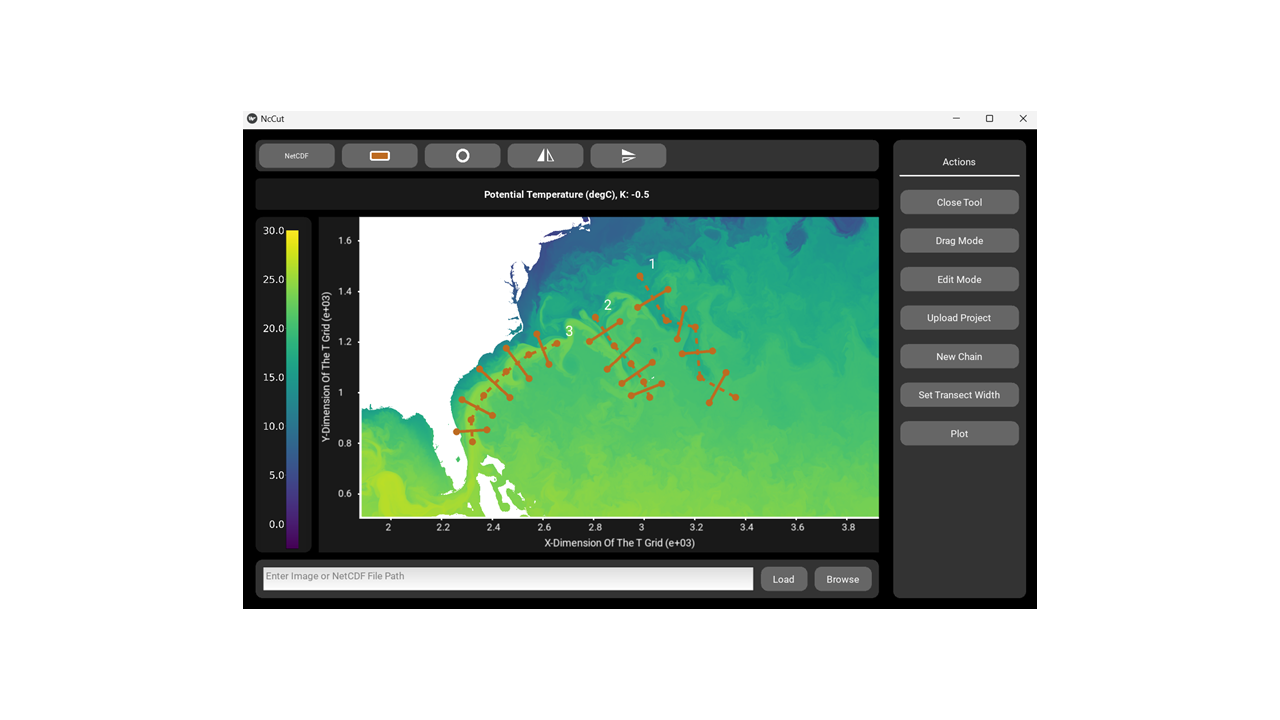
The Orthogonal Chain tool allows you to draw a line along a feature, and transects will be made orthogonal to the line you’ve drawn with a set width:
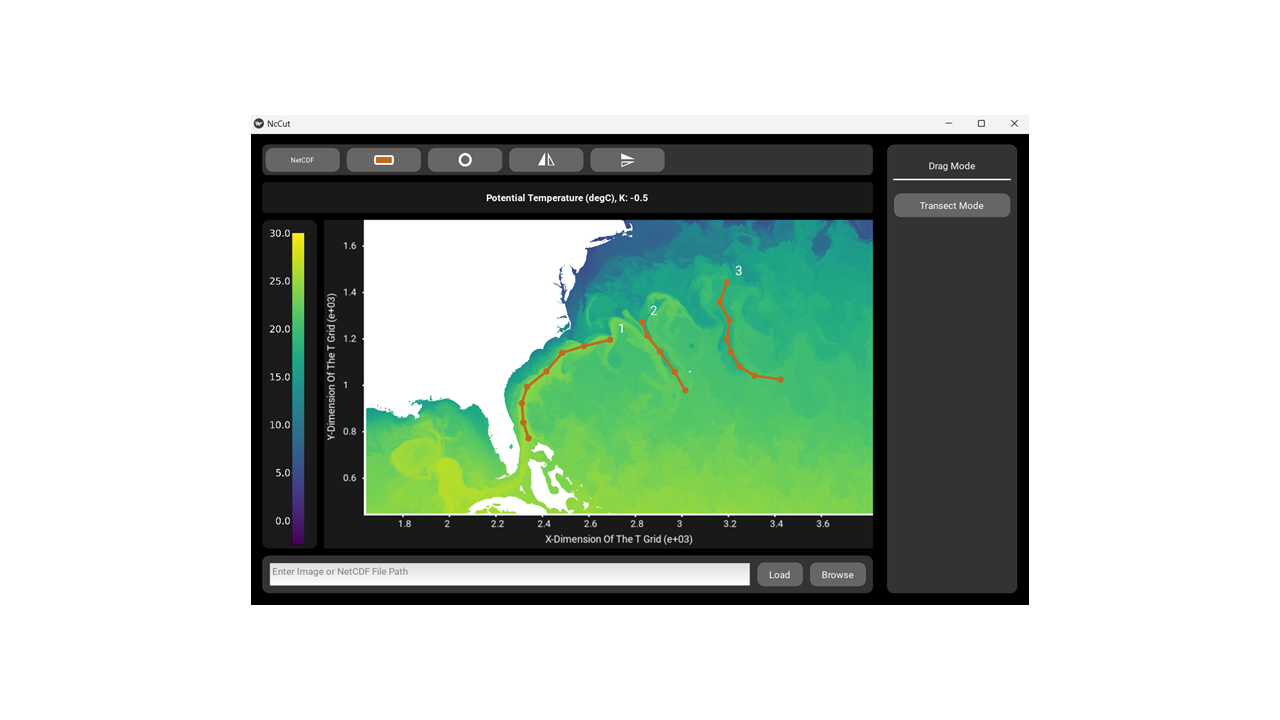
The Inline Chain tool allows you to draw multiple transects chained together along a feature.
Inline Chain
Using this tool chains of transects can be drawn. Transects will be taken along the line segments drawn between the clicked points. Multiple such Chains can be drawn out at once before being plotted. These chains can all be saved together and reloaded into the viewer later. When a large file is being explored this allows you to mark out features over multiple sessions.
Hit the Inline Chain button to enter transect mode.
- Click points along the feature you’d like to make transects along. Transects will be made between the points you click.
Select Drag Mode from the actions sidebar to drag the image without selecting points, and select Transect Mode to go back.
Select Edit Mode to delete either the last point clicked or the last chain drawn. You can also press the esc key to delete the last chain draw.
Right click to select the final point or select New Chain to begin a new chain and repeat for as many chains as you’d like.
When done select the Plot button and a popup will appear with a plot of all transects from the first chain and downloading options.
Click anywhere around the popup or the close button to dismiss
Orthogonal Chain
Using this tool transects will be made orthogonally to the line segments in the chain marked out by the user with a specified width. Multiple chains can be drawn onto a loaded file at once before being plotted. These chains can all be saved together and reloaded into the viewer later. When a large file is being explored this allows you to mark out features over multiple sessions.
Hit the Orthogonal Chain button to enter transect mode.
Click points along the feature you’d like to make transects across. Solid lines will appear crossing the dashed line you draw indicating where the transect will be taken.
Select Drag Mode from the actions sidebar to drag the image without selecting points, and select Transect Mode to go back.
Select Edit Mode to delete either the last point clicked or the last chain drawn. You can also press the esc key to delete the last chain drawn.
To change the width of the orthogonal transects made you may enter the number of pixels into the Width text box. Select Set to change the width for all future transects.
This will not change the width of transects already drawn
If you change the width of a chain any new chains will continue to use that same width unless you change it again.
Right click to select the final point or select New Chain to begin a new chain and repeat for as many chains as you’d like.
When done select the Plot button and a popup will appear with a plot of all transects from the first chain and downloading options.
Plotting
- When you are finished using a tool, select the Plot button to view plots of your data and choose which data you would like to save.
You can select which chains/transects you’d like to plot
If you used the inline chain tool, the transects within the chain will be plotted continuously end to end
If you used the orthogonal chain tool you can plot an average of the chains transects if you used the same transect width throughout the whole chain
- If using a NetCDF file, more plotting selections are available to you
You can select multiple variables and Z values you’d like to see your selected chains/transects plotted from.
- If using a NetCDF file with a Z dimension you can select Plot all Z as Img to plot an interactive image of a single chain/transect taken over all Z values of your dataset. To use this option select only one chain/transect and only one variable.
If you used the inline chain tool, the transects within the chain will be plotted continuously end to end
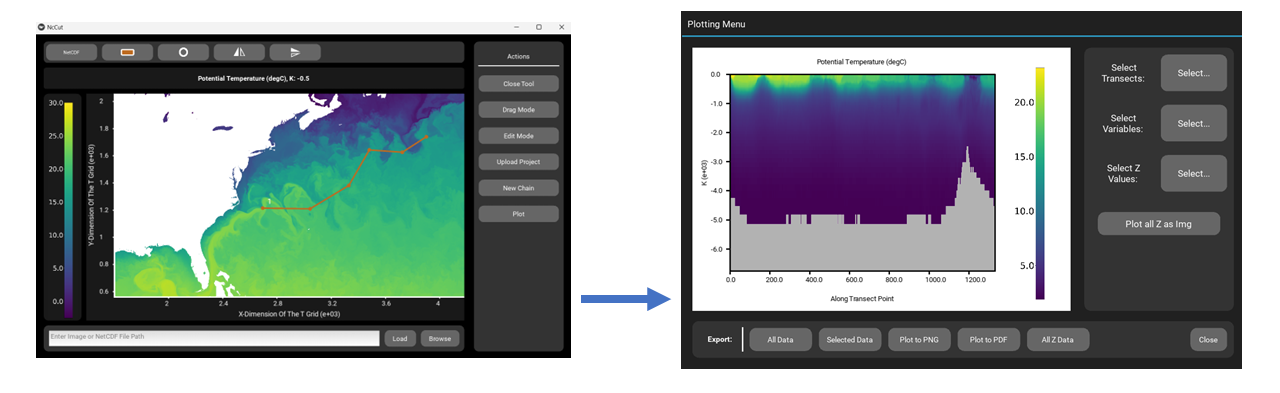
You can save the current plot to .PNG or .PDF formats.
- You can also save the transect data itself from three options:
Save All Data will save all transects from all chains. If using a NetCDF file it will do so for the currently selected variables and z values.
Save Selected Data will save only the transects selected in the plotting menu. If using a NetCDF file it will do so for the currently selected variables and z values.
Save All Z Values will save all z values for the selected transects and variables. This option only appears if using a NetCDF file with three dimensions.
See the Data Output section for how the saved data is formatted.
Click anywhere around the popup or the close button to dismiss plotting window.
Loading Previously Saved Chain Data
To reload a previously worked on project:
Load the same dataset/image you worked on previously. Chain data files are specific to the file, variable, and coordinate selections originally used.
Hit the tool button of the tool you used previously to enter transect mode.
Instead of clicking new points, select the Open Data button.
Enter the file name of the transect data you saved previously from the plotting menu and select Ok.
All chains from the file will load onto the viewer and you can continue working.
Configuration File
NcCut’s default graphic settings, netcdf configuration settings, and metadata can be configured using a configuration file. An example file with information on the possible configurations can be found here.
For NcCut to locate the file it must be named nccut_config.toml and be in one of the following locations which are by ordered by decreasing search priority:
Command line argument:
Environment variable called ‘NCCUT_CONFIG’ holding the path to the config file.
Current working directory and then in
Either ‘%APPDATA%nccutnccut_config.toml’ on Windows or ‘~/.config/nccut/config.toml’ on Linux and macOS
Changing Logger Settings
nccut.logger module
This module sets the default logging level for NcCut and defines ways for the user to access and adjust the logging level. NcCut itself does not implement logging messages but it’s dependencies do.
- nccut.logger.get_logging_level()
Get the current logging level for the root logger.
- Returns:
The current logging level (e.g., ‘DEBUG’, ‘INFO’, ‘WARNING’, ‘ERROR’, ‘CRITICAL’)
- Return type:
str
- nccut.logger.set_logging_level(level)
Set the logging level for the root logger and specific dependency loggers. This allows end users to change the logging level.
- Parameters:
level (str) – The logging level to set (e.g., ‘DEBUG’, ‘INFO’, ‘WARNING’, ‘ERROR’, ‘CRITICAL’)